Release 50.1 Notes 22 February 2026#
Summary#
In this release, we’ve developed the following improvements:
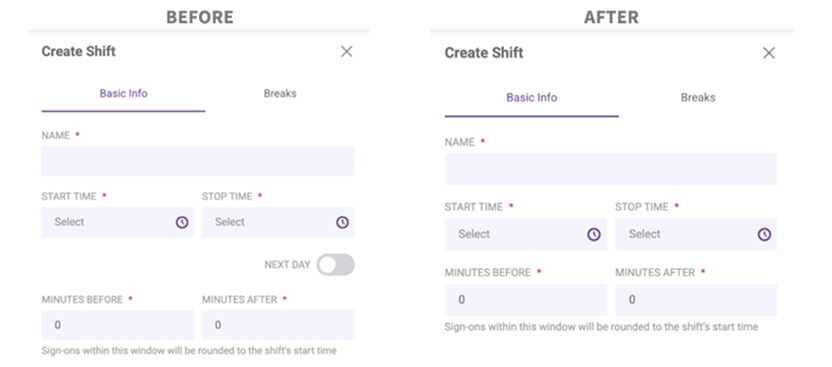
The Next Day Toggle has been removed when creating or editing shifts or breaks in Labor Hub > Shifts. Instead, the system now automatically determines whether a time falls on the same day or next day.
Labor screens are now easier to navigate for organizations with only one system and one facility. If your organization has just one system and one facility, and you haven’t set a default in My Account > Labor Preferences, the System & Facility is now automatically selected for you.
When you export from the Labor Associates page, your file will now include Last Modified Date and Last Modified By.
Grid columns can now be automatically resized to fill the available space each time the widget loads, making dashboards easier to read and reducing empty white space.
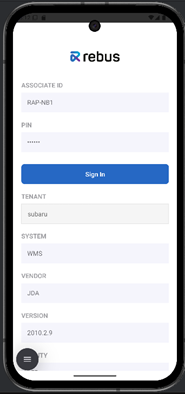
In the Rebus Employee Portal mobile app login screen, the Associate ID field, Pin field and Barcode/QR scan button have been moved to the top of the screen for easier access.
There is a new Rebus AI Panel that brings Chat and Dashboard Insights together into one space.
Labor Module Improvements#
Next Day Shifts Calculated Automatically#
The Next Day Toggle has been removed when creating or editing shifts or breaks in Labor Hub > Shifts. Instead, the system now automatically determines whether a time falls on the same day or next day based by comparing the selected time to the shift’s start or end times, choosing the option that creates a valid time range within 24 hours.
For example, if a shift starts at 9:00 PM and you select 2:00 AM as the end time, the system automatically marks it as 2:00 AM Next Day because that creates a valid overnight shift within a 24-hour period. If you instead select 10:00 PM as the end time, it remains Same Day since 10:00 PM Next Day exceeds a 24-hour period.
This update removes extra clicks, which makes it easier to create and manage overnight shifts and breaks.
Time dropdowns are also now grouped into Same Day and Next Day. If you select a next-day time, a small badge will appear.
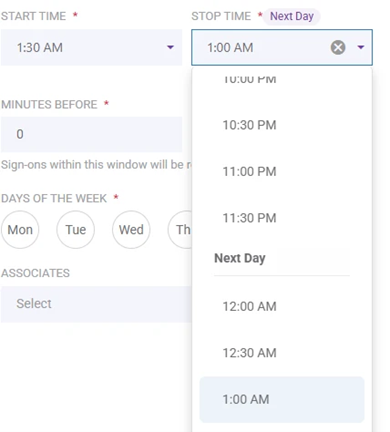
If you manually type a valid time (for example, 2:00 AM), the system will automatically decide whether it should be Same Day or Next Day. You’ll still see an error message if there are issues such as:
Stop time is earlier than Start time
Invalid time format
Shift longer than 24 hours
Breaks “Allowed Until” is earlier than “Allowed From”
Overlapping breaks
Break set outside of the shift
Break duration is longer than the allowed window
System and Facility Pre-selected#
Labor screens are now easier to navigate for organizations with only one system and one facility.
If your organization has just one system and one facility, and you haven’t set a default in My Account > Labor Preferences, the System & Facility is now automatically selected for you when you:
Open the Labor Hub
Open the Associate Portal
This means you can start working right away without having to select a System & Facility each time.
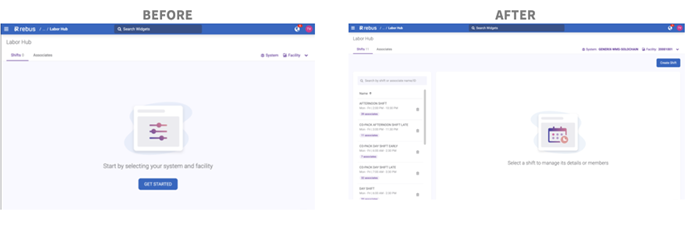
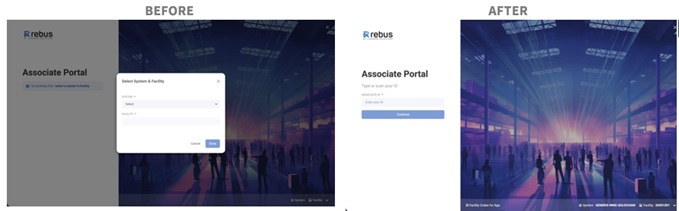
If your organization has multiple systems and/or facilities, you still need to select your System & Facility from the picker.
Labor Associates: “Modified Date/By” Columns in the CSV Export#
There is now more detail in the Labor Associates CSV export. When you export from the Labor Associates page, your file will now include two new columns:
Last Modified Date: the date and time the record was last updated.
Last Modified By: the email address of the person who last updated the record
This matches what’s already available in other exports, such as User Management. No changes have been made to CSV imports.
Row Clicking does not Select Row#
In the Labor Hub > Activity Audit > Errors screen, rows will now be selected only when you click the checkbox. Previously, clicking anywhere within a row would select that row. This update helps prevent accidentally resolving or deleting the wrong records while reviewing error details.
Employee Portal Mobile App Improvements#
Associate-related fields at the top of the login form#
In the Rebus Employee Portal mobile app login screen, the Associate ID field, Pin field and Barcode/QR scan button have been moved to the top of the screen for easier access. Previously, they were located at the bottom of the screen, and you had to scroll to reach them.
Other Improvements#
AI Panel has AI Insights and AI Chat#
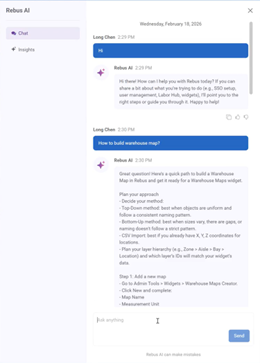
There is a new Rebus AI Panel that brings Chat and Dashboard Insights together into one space. This update makes AI functions in Rebus:
Easier to find
More consistent
Fully integrated into your workflow
Previously, Rebus AI Chat and Dashboard Insights were accessed from different parts of the user interface. Rebus AI Chat makes it easier for you to find answers to your Rebus Help Center questions without having to manually search through documentation. AI Dashboard Insights helps you better understand your dashboard data by identifying trends, patterns, and outliers across your dashboard widgets.
Rebus AI Button#
A new Rebus AI button now appears in the bottom-right corner of every screen except the Login screen. Clicking it opens the AI panel on the right side of the screen.
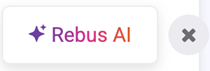
You can temporarily hide the button by clicking the small “X” next to it. It reappears when you refresh or return to the page.
Chat Tab#
The Chat tab opens by default when you launch the panel. This tab functions the same as the previous Rebus AI Chat feature.
Insights Tab#
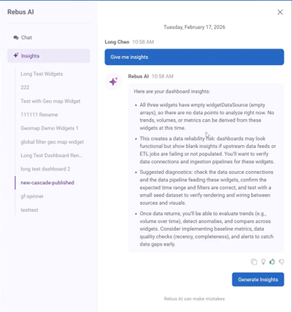
Dashboard Insights is now located inside the Rebus AI panel. When you open the Insights tab from a dashboard:
If no insights have been generated yet, insights are automatically generated based on the current dashboard.
If insights already exist, the Insights history is displayed, which allows you to view previous results and generate new insights by clicking the Generate Insights button.
Dashboards: Grids can be Auto-sized#
Grid columns can now be automatically resized to fill the available space each time the widget loads, making dashboards easier to read and reducing empty white space.
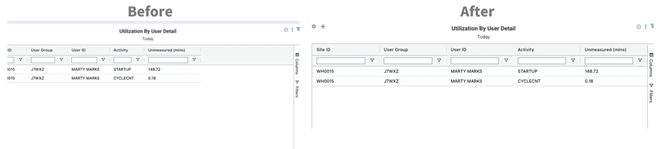
When you choose “Resize Columns to Fit” in your Dashboard widget, your selection is remembered when you reload the page and refresh the widget. Previously, the widget would not remember your selection when refreshing or reloading the page. This applies to Dashboards, but not Favorites.
Bug Fixes#
Favorites - Warehouse map widget do not show refreshing when date is updated
Favorites: Console error is displayed after deleting a widget
Favorites - Widget List - Widget tooltip is cut off depending on length of description
User Management: Cloning a user no longer clones their custom dashboards
Custom data form pulling adjusted time