Labor Admin - Errors#
Reviewing and Resolving Error Transactions#
This topic covers how to resolve transactions that weren’t successfully migrated from the WMS to Rebus.
The Activity Audit Screen#
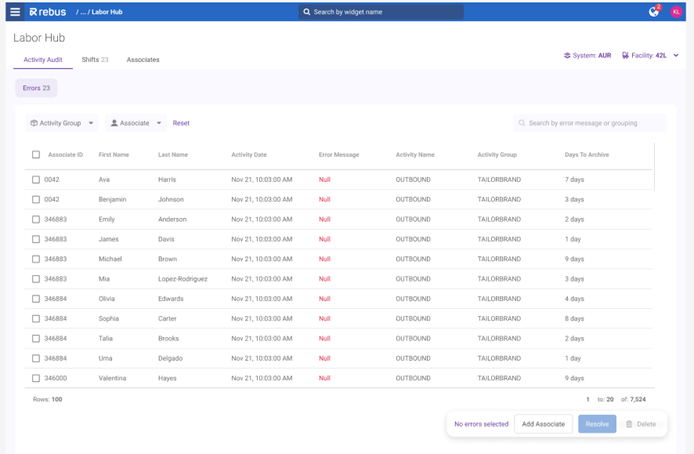
The Activity Audit Screen is located in the first tab of the Labor Hub. The screen allows you to review and manage transaction errors that have occured. The Errors page presents transaction records in a grid format; each row represents a transaction that requires review. Both Quarantined and Incomplete records are in one view.
Days to Archive#
The Days to Archive column shows how many days remain before the error is automatically removed from the grid and archived.
The countdown is based on the activity timestamp in UTC:
Errors countdown begins at 10 days
Incompletes countdown begins at 5 days
The column is color-coded for urgency:
0–2 days: Red
3–5 days: Orange
6–10 days: Green
Grouping#
You can group errors directly within the grid to make large lists easier to review.
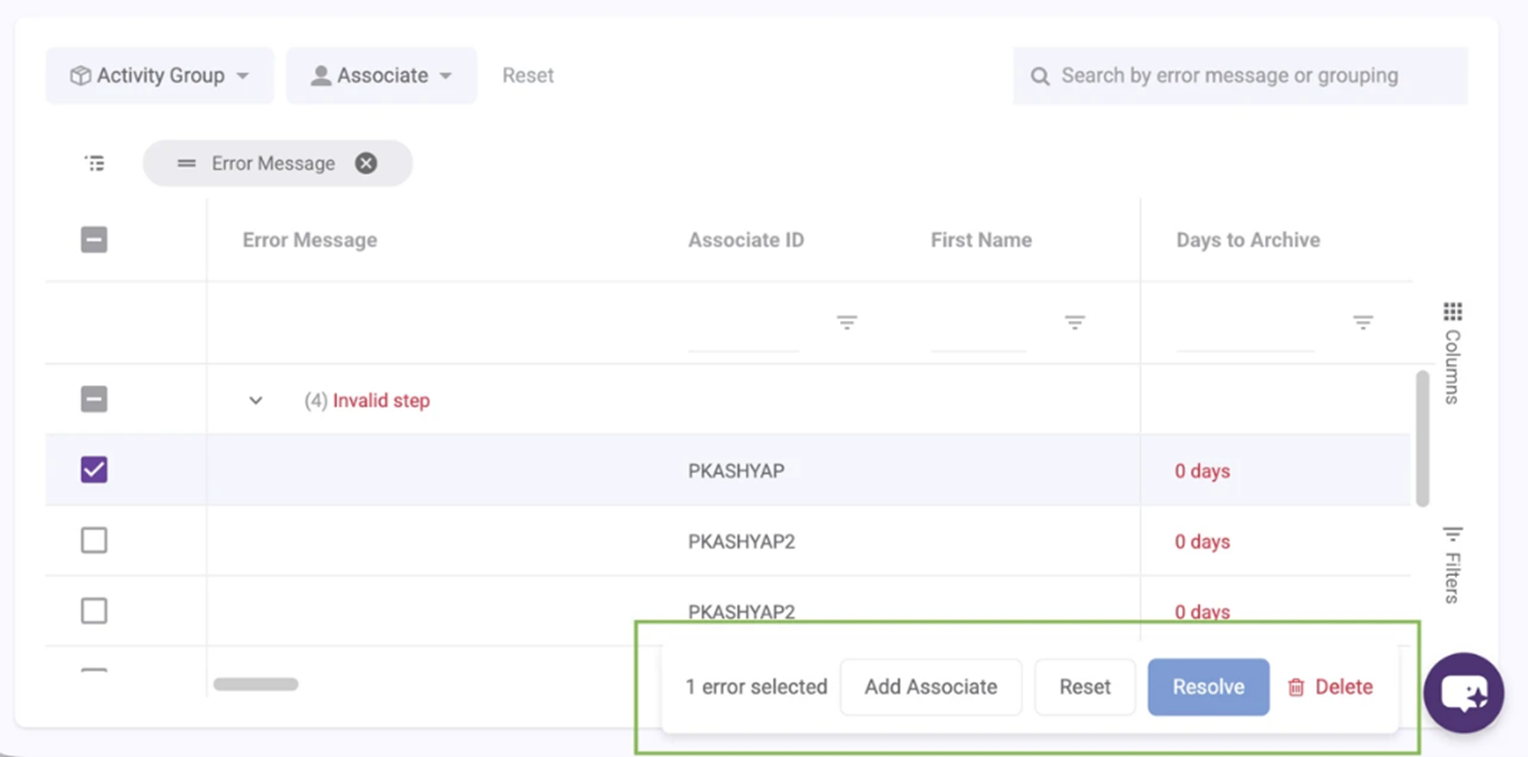
Group Errors by Error Message to quickly see all transactions with the same issue together
Group by Activity Group or Associate to organize errors by people involved
Select the checkbox next to the grouped items to select multiple items at once
Table Actions Drawer#
The Table Actions Drawer at the bottom of the screen lets you add an associate and Reset, Resolve or Delete transactions once you select an error. To access the drawer, you can either hover over it to temporarily expand it and access actions, or pin the drawer open using the arrow to keep all tools visible.
You can also create an Associate directly from this panel to resolve the Invalid User’ Error by clicking the Add Associate button in the panel.
Resolving Erros#
To resolve an Error on the transaction screen:
Go the Admin Tools -> Labor -> Labor Hub -> Activity Audit tab.
Select one or more errors from the grid.
Click Resolve in the action drawer. The selected errors are submitted for resolution immediately.
The grid refreshes and resolved errors no longer appear.
What if this doesn’t work?#
If there are still quarantined transactions in the table that weren’t resolved, contact Rebus Customer Support or review Error Code Reference.