FAQ and Troubleshooting#
Troubleshooting – Trailer Issues
Why is my fluid load count widget running slow or timing out?
Why does a trailer still appear tied to a dock door after it was removed from the system?
Why are scans and trailer data not updating for a specific area?
Why are trailer records missing for a specific warehouse code in a table?
Why does scan or system data stop updating and then start again later?
Can an existing data collection be expanded to include additional sites or locations?
General#
Can I access Rebus from my tablet or phone?#
Yes. You can download Rebus apps for both Android and iOS devices. In the utiities bar of the Rebus web application, click  and then select either the Android or Apple icon.
I’ve forgotten my password. What should I do?#
On the logon page, click ‘Forgot Your Password?’. You are prompted to put in your email address,
Enter your email and click ‘Next’. You receive an email with a temporary verification code like the one you received during initial sign up.
Use this code to access the form where you reset your account password.
Can I opt out of AI features without losing core platform functionality?#
Yes. If you want to remove the Rebus AI tools from your dashboards, go to the Admin Tools -> System -> Organization Admin screen -> Organization Details tab.
Click the ‘Enable AI Dashboard Insights’ toggle so that it’s turned off. The Rebus AI panel is removed from your environment’s dashboards.
Troubleshooting - Widgets and Dashboards#
How can I download Rebus on my tablet or phone?#
If your Rebus My Account screen is set up with your mobile phone number, you can get a download link by SMS.
To download the app, login to your Rebus application account and click on the mobile icon at the top of your homepage to receive a download link by SMS.
Can I see how a widget was built?#
Yes. You can see how a widget was built by taking it apart in the widget builder:
Go to Admin Tools -> Widgets -> Widget Builder and select the widget that you want to take apart
Copy the widget by clicking on the ‘Copy’ button in the upper right
Click on the gear icon next to the stage name to see how it was configured
Click on the
 icon to delete the stage and access the preceding stage
Create a document that contains the information about how all of your widgets are built.
I’ve forgotten my password. What should I do?#
Click ‘Forgot Password’ and follow the steps in I’ve forgotten my password. What should I do?.
Why can’t I change the parameters on a widget?#
Check to see if you’re drilled down from a higher widget. If the widget is part of a drill down path, you can change parameters only at the highest level widget.
My Account screen was changed and I lost access to some of the widgets on the dashboard template. What can I do?#
If the owner of a dashboard template has his or her My Account screen changed, he or she may lose access to some or all widgets displayed on the dashboard. This issue must be fixed manually.
Steps#
Shift dashboard template ownership to another user with the correct My Account screen.
Move original user back to original My Account screen.
Shift ownership of dashboard template back to original owner.
Note
 If you just change the original user’s profile back to the original profile, the lost widgets will not re-appear.
Troubleshooting - Display Issues#
Why is my widget missing data or showing “no data”?#
There are several reasons why your widget is not showing data. Go through this list to determine what the source of the problem could be before contacting the implementation team.
Possible Issue… |
What You Can Do… |
|---|---|
Widget or browser needs an update |
Refresh the widget or clear your browser cache. The widget may not have updated properly. Also confirm if there have been any system updates. |
Restricting filter |
Check the dashboard’s Global Filters. If a Global Filter is applied, it may be restricting results. Remove or adjust the filters and reload the widget. |
Data mismatch or disconnect |
Recent changes in your data may no longer align with your widget configuration. For example, the ID of a trailer has changed or been reassigned, and now no data is showing up for it in the widget. Verify whether any data values or naming conventions have changed. |
Null field |
Widgets may exclude records when mandatory fields are empty or null. Check that all required fields used in the widget logic contain valid values. |
Identical fields in the drill-down |
If a parent widget passes values to a child widget (like dates or identifiers), ensure the fields are uniquely named. For example, avoid using the same name for a month field and a single-date field. |
Data sync issues |
Confirm that the data sync into Rebus is pulling all necessary tag or identifier values. If the load is capturing only numeric tags and skipping alphanumeric ones, some inventory records will be missing. This can cause incorrect quantities or discrepancies. Contact the implementation team if you suspect this issue. |
The data in my widget does not match the data in my system. How can I fix this?#
If you experience a difference in information between your system and what is shown in the widget, try refreshing the widget or clearing the cache of your web browser. It’s likely that the widget has not been properly updated. If the problem persists, check for any system updates or reach out to support for further assistance.
My drill-down or cascade widget is showing more data than expected. What should I do?#
If your child widget is displaying all records instead of only the item or value you clicked on, make sure the input parameters are in the same order between the parent and child widgets. Drill-down and cascade filters rely on parameters being passed in the correct sequence. If the parameter order differs between widgets, the wrong value may be sent to the child widget, causing it to display all records instead of the filtered result.
My widget isn’t filtering out the data I want removed. What should I do?#
First, make sure the issue is not in your dashbaord filter settings. Then, make sure your regular expression is checking the entire field, not just the beginning. Some regex patterns test the start of a string unless you explicitly tell the pattern to evaluate the whole value. If the expression doesn’t account for the full field, unwanted records may still appear. Contact the implementation team to help you resolve the problem.
Data Refresh#
How often does my Widget Data refresh?#
A widget’s refresh rate is customizable. There are two ways a widget can refresh.
You can set the refresh rate for each widget on the dashboard. Open the widget’s properties form and set your auto refresh rate in hours, minutes, or seconds. You can see a widget’s refresh rate by hovering over the Quickview icon.
You can manually refresh the data on the widget. Select the ‘Refresh’ option under the gear icon menu. If the widget’s date range covers more than 32 days, the widget is frozen and won’t refresh.
Troubleshooting - Widget Builder#
Every time I try to save a custom expression I get a ‘toUpperCase’ error. What can I do?#
Here are some things you can try:
Confirm that you’re using the right syntax for the function you’re setting up. You can look up a function’s syntax at Widget Building Function Reference.
Confirm that fields and arguments that you’re supplying to the function are of the right data type.
The labor widget displays inflated time for indirect hours. How can I fix it?#
Check to see if the widget has a grouping stage that uses the activity’s unique identifier before doing any other manipulation.
Any non-essential activities are configured as 2-step activities in your labor module. Each step has information about its start and end time and displays information about the whole activity. Grouping the data according to the activity’s unique identifier allows Rebus to manipulate the activity’s information while ignoring duplicate values.
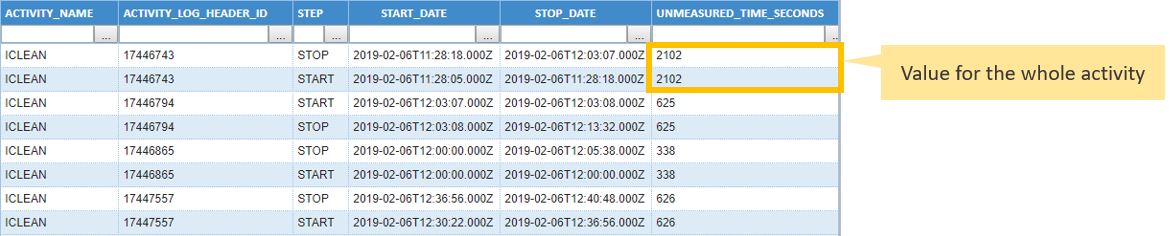
The example above would return a total of 7382 seconds of unmeasured time for the ICLEAN activity. The following example, which groups the data according to the activity’s unique identifier, returns only 3691 seconds of unmeasured time for the ICLEAN activity.

How can I make sure that all chart series labels appear on top of the bars and not inside them?#
In bar charts, a chart series label will appear inside the bar if the bar height is so high that there’s not enough space on the chart to display the label above the bar. In the Chart Properties, you can adjust the maxValueMargin property to give your chart more buffer room so that chart series labels are shown above the bars.
eg_chart_properties_maxValueMargin.jpg
I’m trying to add a widget composed of custom data to a dashboard, but it is not loading. What can I do?#
Make sure that the widget has a ‘value type’ selected in the ValueAxis. Add the property to the ValueAxis and select the appropriate setting.
Troubleshooting - Labor#
Why is the incorrect vehicle type appearing in transactions?#
Confirm whether the correct vehicle type is set up in your system. If not, you will need to update the data there or contact support to make the necessary changes in Rebus.
Why is “Loader ” appearing in the AUX 1 field designated as Vehicle Type? Can an AUX field be repurposed if it doesn’t have any other use?#
The “Loader” value in AUX 1 is automatically populated for certain activities such as inbound checks and audits. If you’re not using this field, it can be repurposed for other data by adjusting the system settings. Auxiliary fields must be configured by the Rebus team, so reach out to support to reconfigure a field.
Troubleshooting - Custom Data#
Why is my Data Entry Form not appearing in the Custom Data Entry page?#
Ensure that the form has been added to the profile you are assigned to. If the form is missing, it may not have been properly assigned to your user profile.
Go to Admin Tools > Users > Profile Admin.
Click the ‘Custom Data Forms’ tab
In the ‘Existing Profiles’ panel, click on the profile to which you want to assign a form
In the ‘Unassigned’ section, find the form you want to add and click on the chevron to move it to the ‘Assigned’ section
Click on the form you just added and select the permission level you want to grant to the profile’s users
Click ‘Save’
Troubleshooting - Dates and Times#
How can I get the widget to show all transaction times in the warehouse’s local time?#
Note
To troubleshoot this issue, you need access to the widget builder screen.
Check to see if the widget is using the sysdate() function rather than the sysdatetz() function to return date:
sysdate() to return dates… |
sysdatetz() to return dates… |
|---|---|
Problem: Your widget is showing dates in UTC rather than the local date of the warehouse. Solution: Set up the widget to use sysdatetz() to return date/time information. For more details, see: sysdatetz(). |
Make sure that the sysdatetz() function that returns the date has the warehouse’s time zone as one of its arguments. For more information, see: sysdatetz(). If you want to return time/date information for warehouses in different time zones so that the times can be compared, use the sysdate() function and add another DATE_LOCAL field to the widget to show the time in the warehouse’s time zone. |
The widget displays the wrong time for a given warehouse. How can I fix it?#
Note
To troubleshoot this problem, you need access to the widget builder screen.
Check to see if the widget is using the right function with the right type of date format:
sysdatetz() and DATE_LOCAL fields… |
sysdatetz() with DATE fields or sysdate() with DATE_LOCAL fields… |
|---|---|
Problem: the widget is showing dates and times of warehouses that are in a time zone different from the time zone that sysdatetz() has as an argument. |
Problem: The function can’t process the date/time in its current format. |
Solution: use the sysdate() function to return dates in UTC so that the times can be compared and then add another DATE_LOCAL field to the widget to show the time according to each warehouse’s time zone. |
Solution: The sysdatetz() function must be used with DATE_LOCAL fields.The sysdate() function must be used with DATE fields. |
Some records are missing from my widget. What could be the problem?#
Possible Issue…
What Happens…
What You Can Do…
The sysdatetz() function is used at the filter stage and the records come from different time zones.
Sysdatetz() evaluates all DATE_LOCAL values as if they are in the time zone indicated as the function’s argument. As a result, some fields displayed in another time zone are excluded because the function does not convert between time zones.
Use the sysdate() function, which returns dates in UTC to standardize all the rows. For more information, see sysdate().
Troubleshooting – Trailer Issues#
Why is my dock door showing white with no status?#
This can happen when a trailer that was assigned to a dock door is later removed or deleted from the system. When this happens, your widget may not update correctly, and the door can appear white with no status. This is typically a widget or integration issue, not a problem with the trailer data itself. Contact the implementation team or submit a ticket to resolve the issue.
Why is my fluid load count widget running slow or timing out?#
This can happen when a trailer that was assigned to a dock door is later removed or deleted from the system. When this happens, your widget may not update correctly, and the door can appear white with no status. This is typically a widget or integration issue, not a problem with the trailer data itself. Contact the implementation team or submit a ticket to resolve the issue.
This can happen because fluid load data requires joining very large tables, which can slow it down or cause timeouts. To improve performance, simplify the joins and rely on indexed fields. Use these join fields instead of multiple date-based joins:
warehouse_code
item_number
load_number
Indexes are in place to support this and should improve processing speed. You can still limit results by using a smaller date range (such as a few days before dispatch) if needed.
Why isn’t trailer data showing in a data source?#
This can happen when the data source does not contain records for the sites or facilities selected in your filters or data controls. If your view is restricted to locations that aren’t included in the data source, the result set will appear empty even though the data source itself is valid. Double-check that the sites, warehouses, or regions you are filtering on are supported by the data source. If you need additional locations included, the data source needs to be expanded.
Why is a widget showing inbound trailers as “on yard” longer than expected or when they’re already completed?#
This can happen when the completion or status update for an inbound trailer is missed during a system poll. When that occurs, the widget continues to treat the trailer as active even though it was unloaded and completed in the source system. In these cases, the historical shipment data is still available, but a backdated or manual poll is needed to pull in the missing updates. Once the poll runs and the status refreshes, the widget data will reflect the correct completion time. Contact the implementation team for help with polls.
Why does a trailer still appear tied to a dock door after it was removed from the system?#
This occurs when a trailer is deleted directly from the source system instead of being properly closed or dispatched through the standard process. When that happens, the event is not fully recorded in Rebus, which causes the trailer to remain associated with a dock door. In these situations, the trailer must be manually removed from the trailer collection to clear the dock door. Contact the implementation team or submit a support ticket to have this corrected.
Why are scans and trailer data not updating for a specific area?#
This can happen when system processes or server access is interrupted, which causes data to stop flowing. Once access is restored and the processes are restarted, scans and trailer data will resume and update normally. If the data does not refresh after processes are restarted, submitting a ticket or contacting the implementation team is recommended.
Why are trailer records missing for a specific warehouse code in a table?#
This can happen when the poll is enabled in Rebus but is not running in the connector client. When that occurs, trailer data stops feeding into the table for the affected warehouse code. Once the poll is restarted in the connector client, the data begins flowing again and missing records appear going forward. If you notice missing data, submitting a ticket helps identify and resolve the issue quickly.
Why does scan or system data stop updating and then start again later?#
This usually happens due to temporary system or server issues. When services are restarted or the issue is resolved, data will begin updating again, and may catch up automatically. If this happens frequently or data does not resume, submitting a ticket allows the issue to be investigated and prevented in the future.
Can an existing data collection be expanded to include additional sites or locations?#
Yes, existing data collections can often be updated to include additional sites or locations, as long as the required data fields are available in the source system. This involves identifying the correct field (such as a site, plant, or warehouse ID) and updating the query logic. Contact the implementation team to update existing data collections.