Labor Admin - Coaching#
The Rebus Coaching module makes training and coaching associates through Rebus fast, consistent, and easy to manage through the Labor Hub.
Supervisors can create, edit, and save coaching observations directly in Rebus. The Coaching Module uses configurable questions, AI observations and summaries, and visibility into associate performance metrics to help provide additional context to an associate’s overall performance.
Workflow and Permissions#
A Supervisor can begin an Observation for a specific associate from the Labor Hub > Coaching screen of the Helpfile. An Observation is a performance evaluation tool and involves a multi-step process, including:
An AI coaching note that describes an associate’s recent performance
Coaching forms that include questions for both the Supervisor and the Associate
An observation summary with recommended actions
An assessment form for both parties to sign and approve
Access to observations is controlled through profile permissions in Profile Admin, and only users with the new Labor Supervisor permission can access the Coaching screens and observation data gathered about associates. Users with access to Activity Configuration can view and manage Coaching Forms.
Coaching Setup#
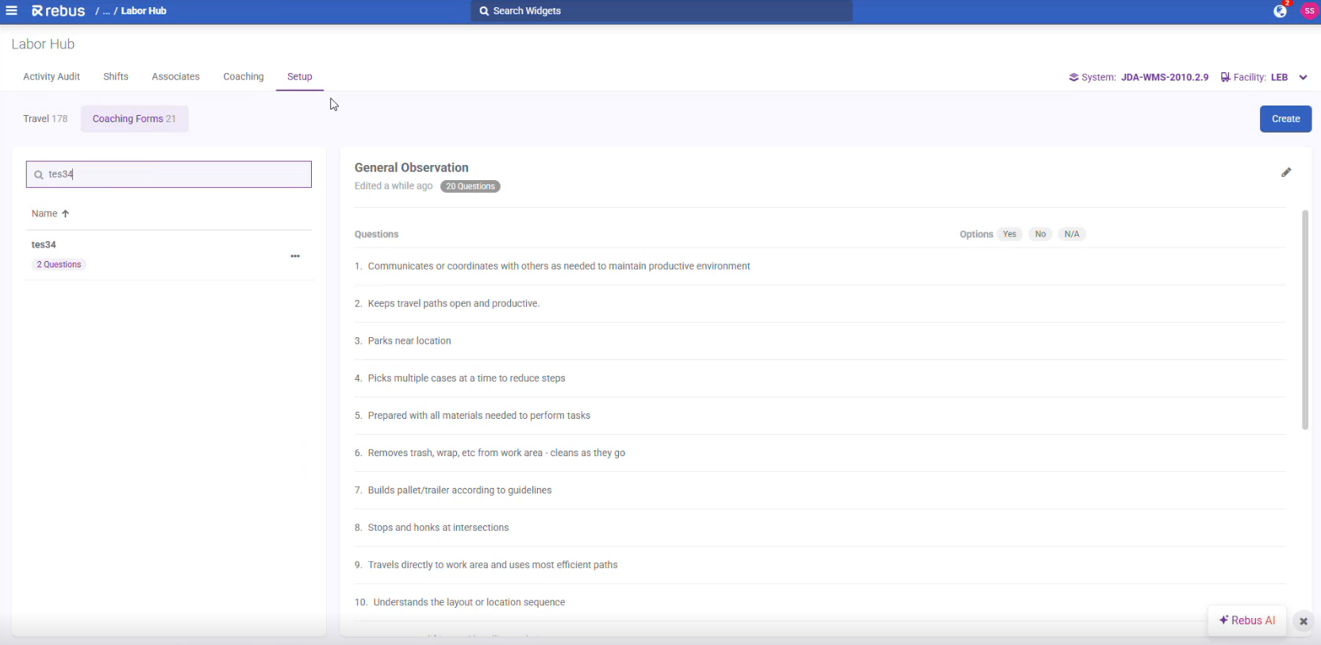
In order to use the Coaching module, you must first set up your personalized coaching forms. These forms can include up to 50 Yes or No questions relating to employee performance. You also have access to a pre-existing template. Suggested questions include:
Did the associate prioritize tasks and follow the work queue?
Were there noticeable delays when changing tasks or assignments?
Was downtime used effectively?
Steps#
Go to Admin Tools > Labor > Labor Hub > Setup, and select the Coaching Forms tab.
Click the Create button.
Enter the questions you want included in your form.
Name and save the form. You can now use it in the Coaching module.
Creating an Observation#
To create an observation:
Go to Admin Tools > Labor > Labor Hub > Coaching.
Select an associate to start an observation. The observation panel opens. The panel is divided into five tabs:
Coaching Note
For Observer
Observation Summary
For Associate
Sign Agreement
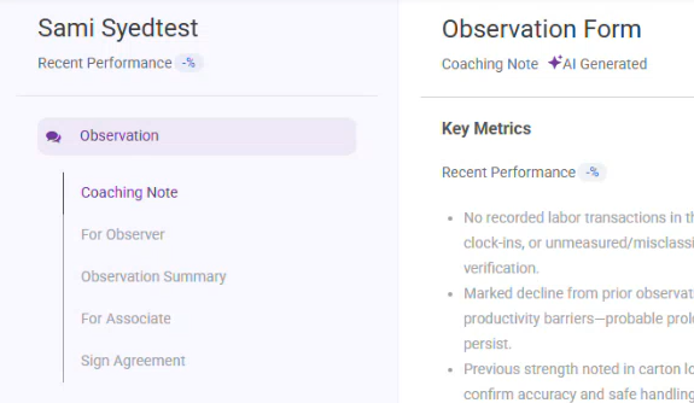
In the Coaching Note tab, you will see an AI generated summary of the Associate’s key performance metrics and a suggested action agenda. You must select your preferred coaching form from the dropdown at the bottom of the screen. The system will suggest a form based on the coaching note above. Once done, click Next.
In the For Observer tab, the Supervisor must fill out the Yes or No questions from the selected coaching form. When done, click Next.
In the Observation Summary tab, you will see AI generated suggested Focus Areas, which give you coaching and observation suggestions based on the submitted questionnaire. Click Next to proceed.
In the For Associate tab, you must have the Associate fill out a generic questionnaire based on their performance. You cannot modify these questions. When this is complete, click Next.
In the Sign Agreement tab, you can see performance metrics for an observation window. You can modify this window to see the difference in metrics. At the bottom of the tab, both the Associate and Observer must sign in order to approve the coaching observation.
Click Approve. Once an Observation is approved, it cannot be edited or removed. You can export results as a .pdf or into Excel.