Dock Door Optimizer#
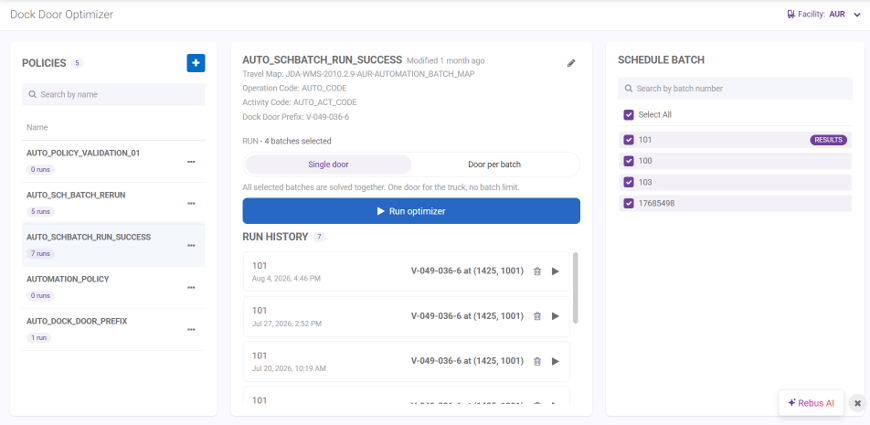
The Dock Door Optimizer (DDO) functionality automatically determines the best dock door to use for shipping out a “schedule batch” (i.e., a work order representing a collection of customer orders being picked and shipped together). This functionality helps you reduce travel time and manual decision-making.
What You Need to Set Up Dock Door Optimizer in Rebus#
Travel distance maps configured within the system for the Travel Distance functionality in the Labor module. The travel distance maps need to:
Be “fully traversable” (i.e., interconnected so that routes can be calculated from picking to dock zones).
Have the dock door locations identifiable through a common prefix that denotes dock doors.
Facility IDs set up through Rebus’s Org Admin screen must match those that are set up in the Rebus Labor module to which the travel distance maps are configured. Otherwise, the DDO functionality won’t be able to find a facility’s travel distance maps.
Work queue data that is complete and accurate, with valid location coordinates, operation codes, and activity codes.
How DDO Works#
A configured DDO “policy” has the details that the DDO functionality needs to calculate the best dock door to use for shipping out a schedule batch. When the policy is run, Rebus gathers the following details based on the policy setup:
Batch of orders based on activity codes and operation codes. Orders are represented in the system through a standard work queue collection (
data_wrkque), which aggregates orders from various host systems into a uniform format for processing. When you run a policy, the system uses the operation and activity codes you selected when you created the policy as filters to determine which batches from the work queue are relevant.Facility’s travel distance map. Only one can be selected.
Prefix code used in location codes to identify dock doors in travel distance maps.
The DDO functionality then does the following:
Finds the source locations of all associated activities.
Retrieves travel map coordinates for those sources and all candidate dock doors.
Calculates the shortest travel distance to each candidate dock door.
Determines the dock door with the smallest total sum of shortest path distances. This is the dock door that is returned as the result.
Setting up Dock Door Optimizer Policies#
You can create and manage Dock Door Optimizer policies for each facility. A policy has the details that the DDO functionality needs to calculate the best dock door to use for shipping out.
To create a policy on the new screen, select the plus button at the top of the Policies panel.
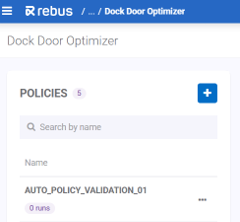
From here, a panel will open, and you must configure the following fields:
Policy Name
Travel Map, which you select from existing Travel Distance data for the facility.
Operation Code, which is a code representing the type of operation, like a Pick.
Activity Code, which is a code representing the specific warehouse activity.
Dock Door Prefix, which is used to match relevant location identifiers.
Modifying an Existing Policy#
You can modify an existing policy in two ways. From the Policies panel, you can clone or delete a policy in the list by clicking the ellipses.
To edit an existing policy:
Select the policy from the list.
Click the pencil icon in the description of the policy that appears in the center of the screen.
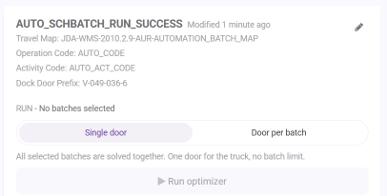
Edit the details of the selected policy.
Click Save.
Running a Policy Against Multiple Scheduled Batches#
To select more than one scheduled batch when you run a policy:
Go to Rebus Menu > Admin Tools > Widgets > Dock Door Optimizer.
Select your Facility.
Select the policy.
Select one or more scheduled batches you want to run from the list on the right side of the screen.
In the main middle panel, choose whether to run batches from a single door or door per batch:
To select more than one scheduled batch when you run a policy, choose Door per Batch, and select up to 50 batches per run.
To produce one combined recommendation, select Single Door.
Click Run Optimizer to run all selected batches. You will see the results in the bottom half of the middle panel.